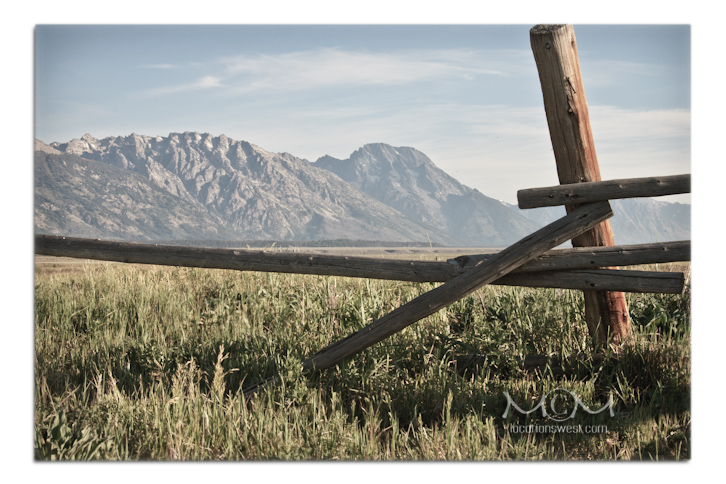
On A Fence |
||
 |
||
It's likely enough you're thinking to yourself, "So what's the big deal about this Lightroom thing?" |
||
With Lightroom: - You can create as many 'Virtual Copies' of a single image as you care to produce – without adding pixel data to or affecting the original image itself. This means that you can have one, two or as many versions of an original each with its own settings: You can have several color versions, several B&W versions, duotones, versions with different crops of the original image, altogether different keywords, ratings, etc. These 'virtual copies' will appear in the Lightroom Catalog as individual images. However, because they are each simply an additional set of instructions written into the image's 'sidecar', a text file attached to the image, they are only an element of the original image's metadata and are not adding any extra pixel data to that original! So if your original digital photograph is 12MB in size and you have ten distinctly different Virtual Copies of that original, the image is still only 12MB in size(!) with the Virtual Copies wrapped into the image's sidecar set of metadata. I know this sounds complicated – and 'under the hood', in fact, it is – but Virtual Copies are really just one remarkable element of all that makes this 'photographer's toolbox' almost magical in its design and execution. - You can always undo a prior image processing decision through Lightroom's History panel, a feature Camera Raw (Photoshop's non-destructive processing engine) does not share. This ability to make changes and adaptations to something you did earlier on a file remains with the image permanently, unlike editing an image in Photoshop. (When you close a file in Photoshop its History disappears.) The History panel is also important because it frees the Lightroom user to simply go at an image, focusing only on evolving each individual photograph – not keeping notes or multi-tasking by attempting to save Snapshots at just the right time or trying to remember what settings need to have been saved as a series worthy for their use again in the future as a Preset. Lightroom's History panel allows you to focus on the task at hand, making the image in front of you look spectacular. When you have completed your work on an image then go back to the recorded History and cherry-pick a series of settings to save as Snapshots or Develop Presets – at that time, after your creative work is done. (This page explains more about how I use Lightroom's History panel in the Develop module.) - You are able to organize and manage all your digital images within a simple, yet sophisticated database (the 'Catalog') providing you the ability to organize and find 'a needle in the haystack' however you feel most comfortable devising pertinent keywords and a variety of tags to assign to each of your images. - You are able to create distinctive slideshow presentations adding audio files if you wish (music or spoken word). - You can build sophisticated web galleries in Lightroom and upload them to the Internet directly from Lightroom. - You can easily publish select images from your Lightroom Catalog directly to a Flickr, Facebook, SmugMug and other photo sharing accounts online. - With Lightroom you are able to sharpen your photos for output to print or export for display on the Internet. What's more, without Photoshop in the picture at all, with the purchase of additional recently updated image enhancing plugins from developers like Nik Software, Photmatix, onOne Software and others you are able to affect your images with these advanced imaging tools as well; then move onto print, the Internet or build your photos into an engaging slideshow – all from within Lightroom itself! - Adobe has a FREE, fully functional 30 day trial period for you to initially 'try before you buy' Lightroom. |
||
 |
||
Every subtle change made to an image in Lightroom appears instantaneously as work evolves under the direction of each individual artist's command. Lightroom more simply provides digital photographers the means to affect their images in ways one would have had to spend years learning Photoshop alone in the past. However, as one grows into picture making that employs compositing and working with 3D software, video editing and various interactive end uses, one's initial training – their introduction to image processing in Lightroom – will make that transition all the more straightforward and less difficult because of what is learned by working with Lightroom first. Lightroom provides all the tools any (and every) serious photographer will need to produce extraordinary work – from the enthusiastic hobbyist to the professional making a living with the pictures they produce. It is not merely a consummate photo processing application. Adobe Lightroom is a suite of interconnected modules, component work-spaces enabling users to organize and archive their work on multiple drives, build impressive web galleries and slideshow presentations and export images for print that are worthy for any art gallery or collector's wall. |
||